Activity Tracking & Proof of Work
If your team is working remotely, keeping track of billable hours and ensuring transparent productivity is critical. UniTrack's Activity Tracker operates securely in the background, logging active time, calculating productivity scores through customizable rules, and capturing optional visual snapshots. This guide explains how to monitor your team's remote activity.
1. The Activity Dashboard
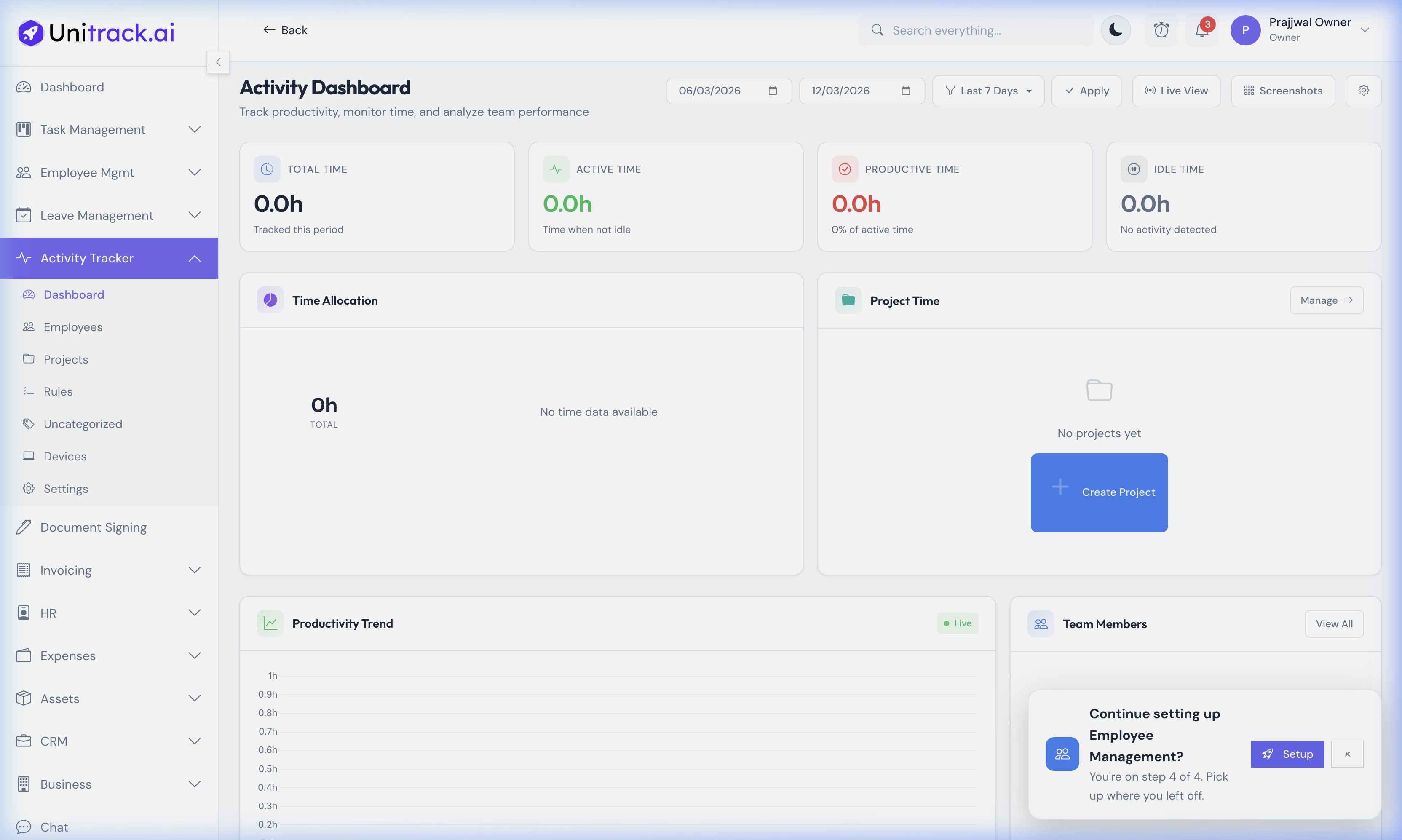
A real-time overview of your entire organization's productivity.
- 1Real-time Metrics
At the top of the dashboard, instantly view Total Tracked Time, Active Time (percentage of time with actual keyboard/mouse inputs), and Productive Time across the organization for the selected date range.
- 2Visual Analytics
Interactive charts break down time allocation. A doughnut chart displays the categories of applications used most frequently, while a trend line shows peak productivity hours throughout the workday.
- 3Team Monitoring
A "Team Members" list provides a high-level summary of who is currently online, their daily tracked hours, and their individual productivity score based on the application rules you've set.
2. Snapshots & Timeline Review
Review visual proof of work through automatically captured desktop snapshots.
- 1The Snapshots Grid
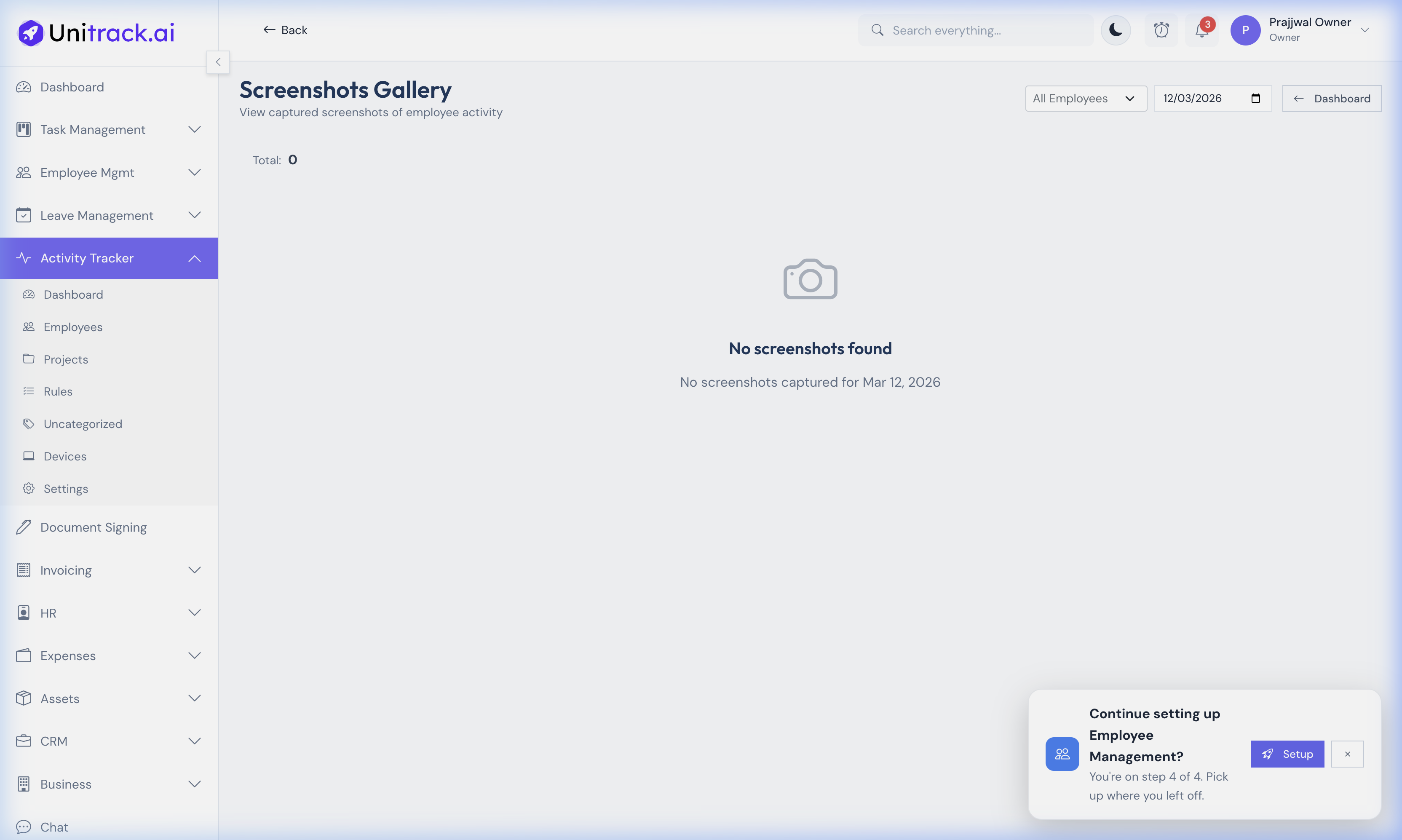
Navigate to the Snapshots section to view an easy-to-scan grid of desktop captures. These are taken at randomized intervals by the background agent to provide undeniable proof of work.
- 2Granular Filtering
You can filter the snapshot gallery by specific employees and dates. This is particularly useful when reviewing invoice hours for freelancers or identifying roadblocks a team member might be facing.
- 3Snapshot Details
Each snapshot is tagged with the exact timestamp, the active application window at the time of capture, and the user's activity level (keystrokes/mouse movements).
3. Device Management & Agent Installation
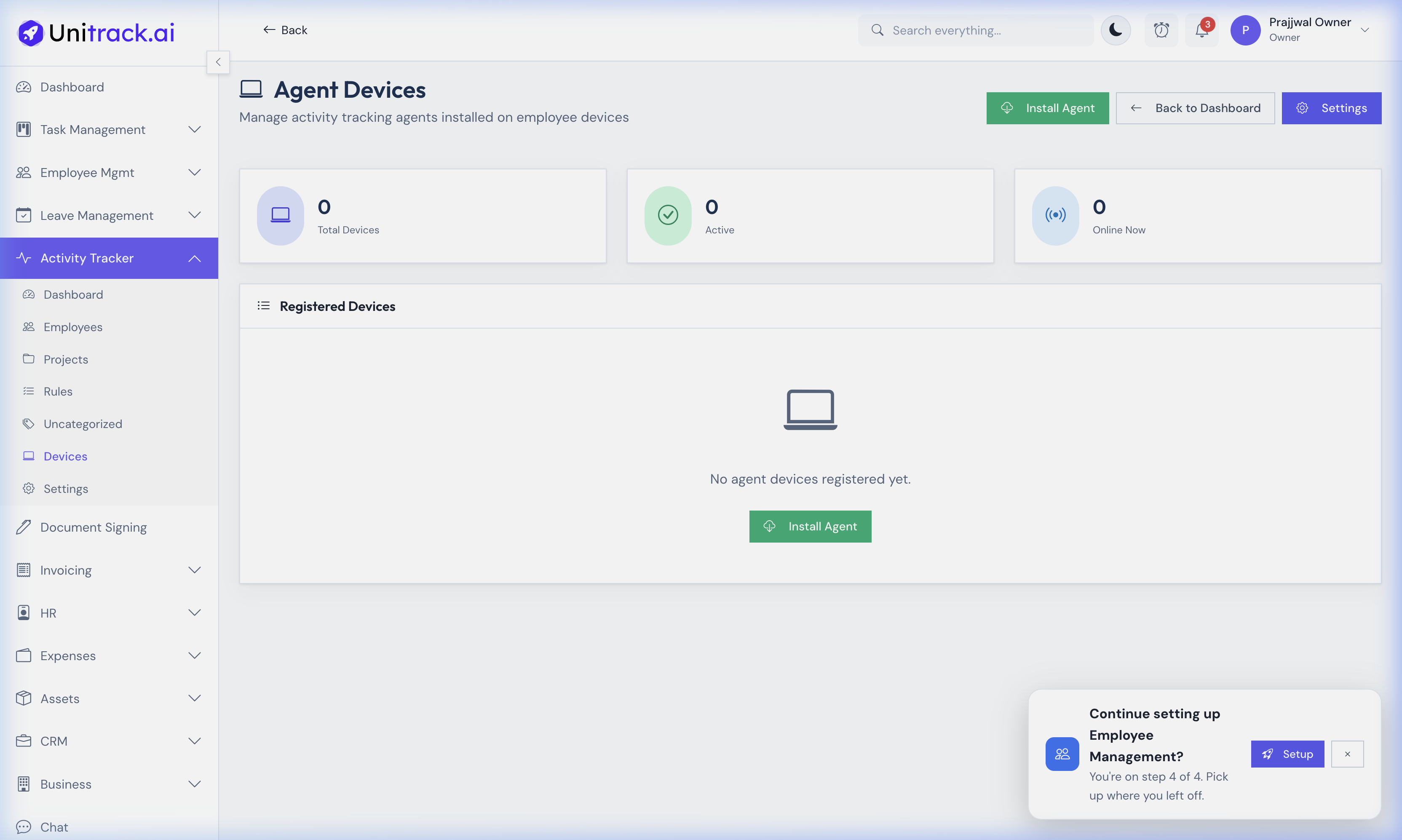
Manage the computers endpoint agents connected to your workspace.
- 1Agent Deployment
To begin tracking, employees must install the lightweight UniTrack desktop agent (available for macOS and Windows). The "Install Agent" button provides the necessary download links and instructions.
- 2Device Status
The Devices list serves as a central hub to monitor all computers running the agent. You can verify if a device is Online, Active, or when it last communicated with the server (Heartbeat).
4. Productivity Rules Engine
Define what "productive" means for your company.
- 1Classifying Applications
Under the Rules section, you can define classification rules. For example, you can rule that "Visual Studio Code" or "Figma" are Productive, while social media domains like "twitter.com" are Unproductive.
- 2Automatic Scoring
Once rules are set, UniTrack's engine automatically categorizes incoming activity data, generating the Productivity Scores seen on the Dashboard without any manual intervention.