Drag & Drop Form Builder
Whether you need an internal IT Support request form, an employee satisfaction survey, or a public "Contact Sales" web form, relying on external third-party surveying apps creates data silos. UniTrack’s deeply integrated Form Builder allows you to create customizable forms that feed directly into your HR and CRM modules.
1. Creating Your First Form
No coding required. Build a form visually from the dashboard.
- 1Open the Form Builder
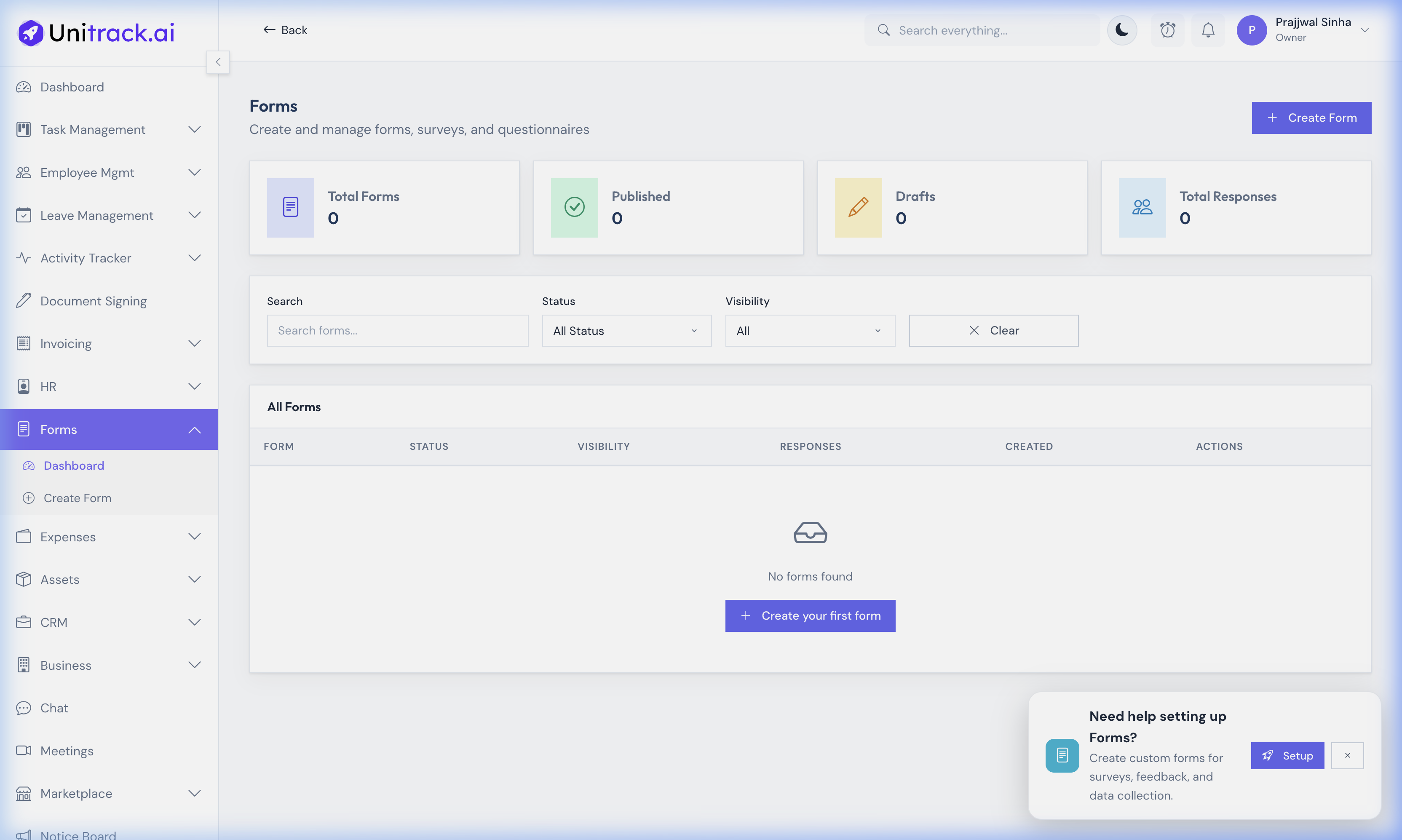
From the main sidebar navigation, go to Forms → Dashboard and click Create Form. This overview also shows high-level stats on your drafts and published forms.
- 2General Settings
Example: Internal IT Request
Give it a title: "IT Hardware Request Form".
Set the Visibility:
• Public — Anyone with the link can fill it out.
• Private — Only specific participants with unique access links can fill it out.
2. Designing the Fields
Drag-and-drop the questions you want to ask.
- 1Rich Field Types
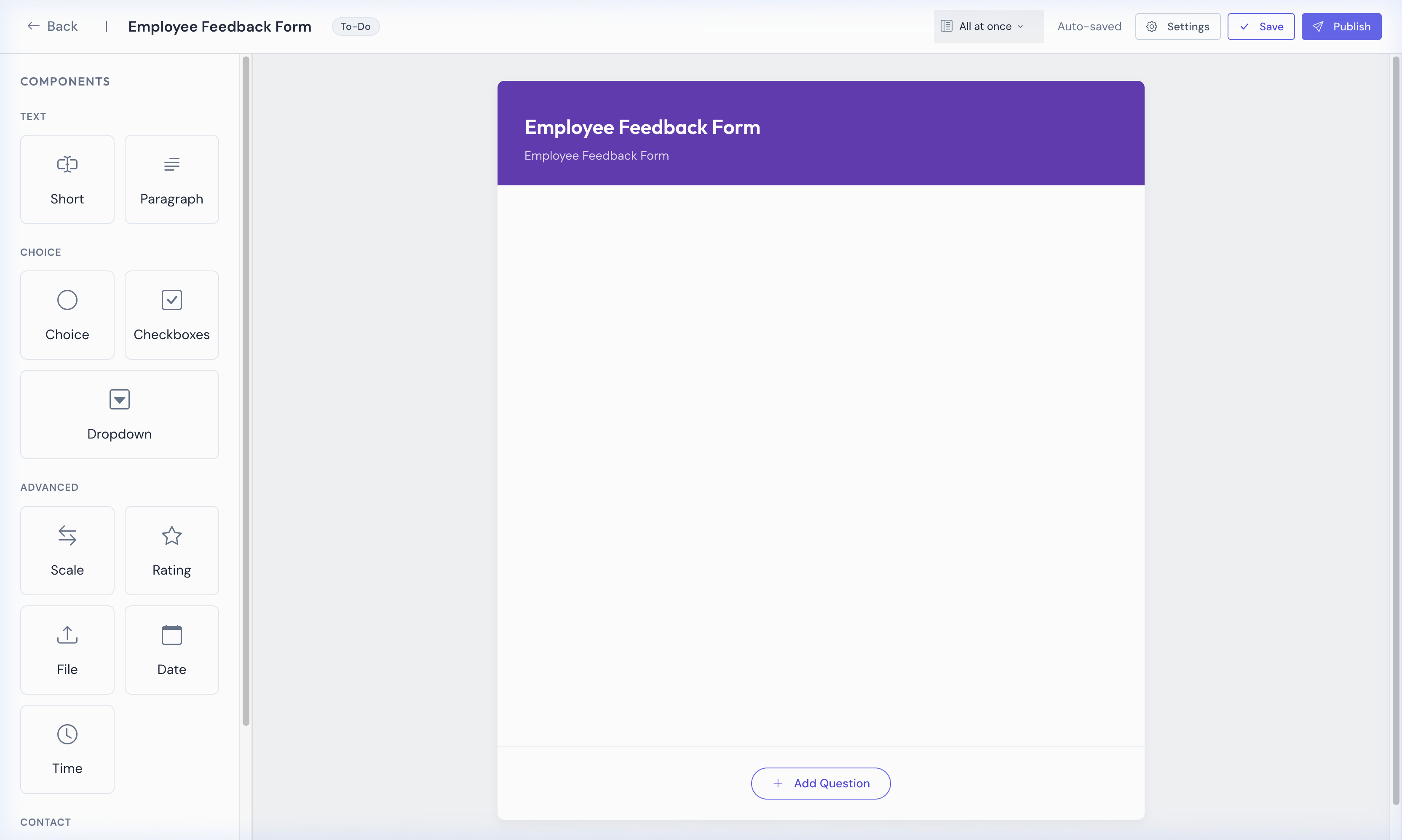
UniTrack supports numerous field types: Short Answer, Paragraph, Multiple Choice, Checkboxes, Dropdown, Linear Scale, File Upload, Date, Time, and Contact Infos. Use the sidebar to drag these directly onto your central canvas.
- 2Adding a Dropdown
Drag the "Dropdown" block onto the canvas. Label it "Urgency Level" and add options directly in the property inspector.
- 3Configuration Options
Every field can be marked as Required to ensure essential data is always collected before submission.
3. Advanced Form Features
Publish and securely distribute your forms.
- 1Publishing Forms
Once your fields are set, use the top toolbar to save your draft and Publish the form. Depending on your visibility settings, you can copy the public link or invite internal members.
- 2OTP Verification for Email & Phone
When you add an Email or Phone Number field, respondents can be required to verify via OTP. This prevents fake submissions and ensures contact data is accurate.
- 3Custom Templates
Don't start from scratch every time. You can save any form you create as a template to reuse across your organization for standardized data collection.
4. Viewing & Analyzing Responses
Track submissions, analyze trends, and export data.
- 1Submissions Dashboard
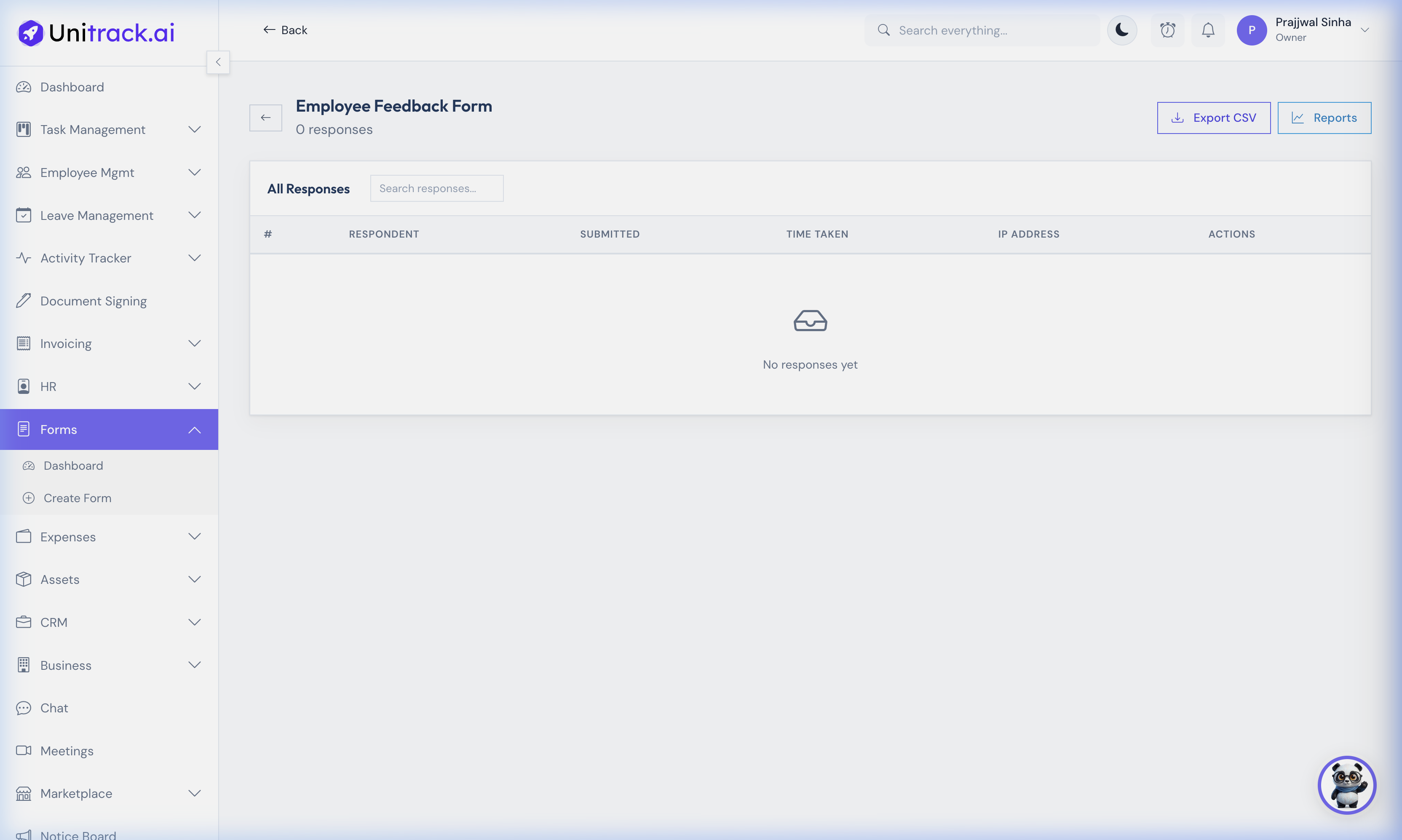
The Responses view shows a spreadsheet-style table of every submission — timestamped, with respondent details and IP address recorded.
- 2Analyzing the Data
UniTrack provides visual reports summary statistics, response distribution across choices, and completion rate tracking. This helps you spot patterns immediately.
- 3Export to CSV
Use the export functions to download all response data for offline analysis or archival purposes.