Professional GST Invoicing
Sending an invoice created in a generic word processor looks amateurish and makes tax calculation prone to manual errors. Worst of all, you have no way to track who hasn't paid you. UniTrack's Invoicing engine solves this by maintaining your items, automating precise tax math (like Indian GST splitting with TDS/TCS support), generating stunning client-ready PDFs, tracking payments, and managing proforma invoices — all with multi-currency and multi-entity billing support.
1. The Sales Dashboard
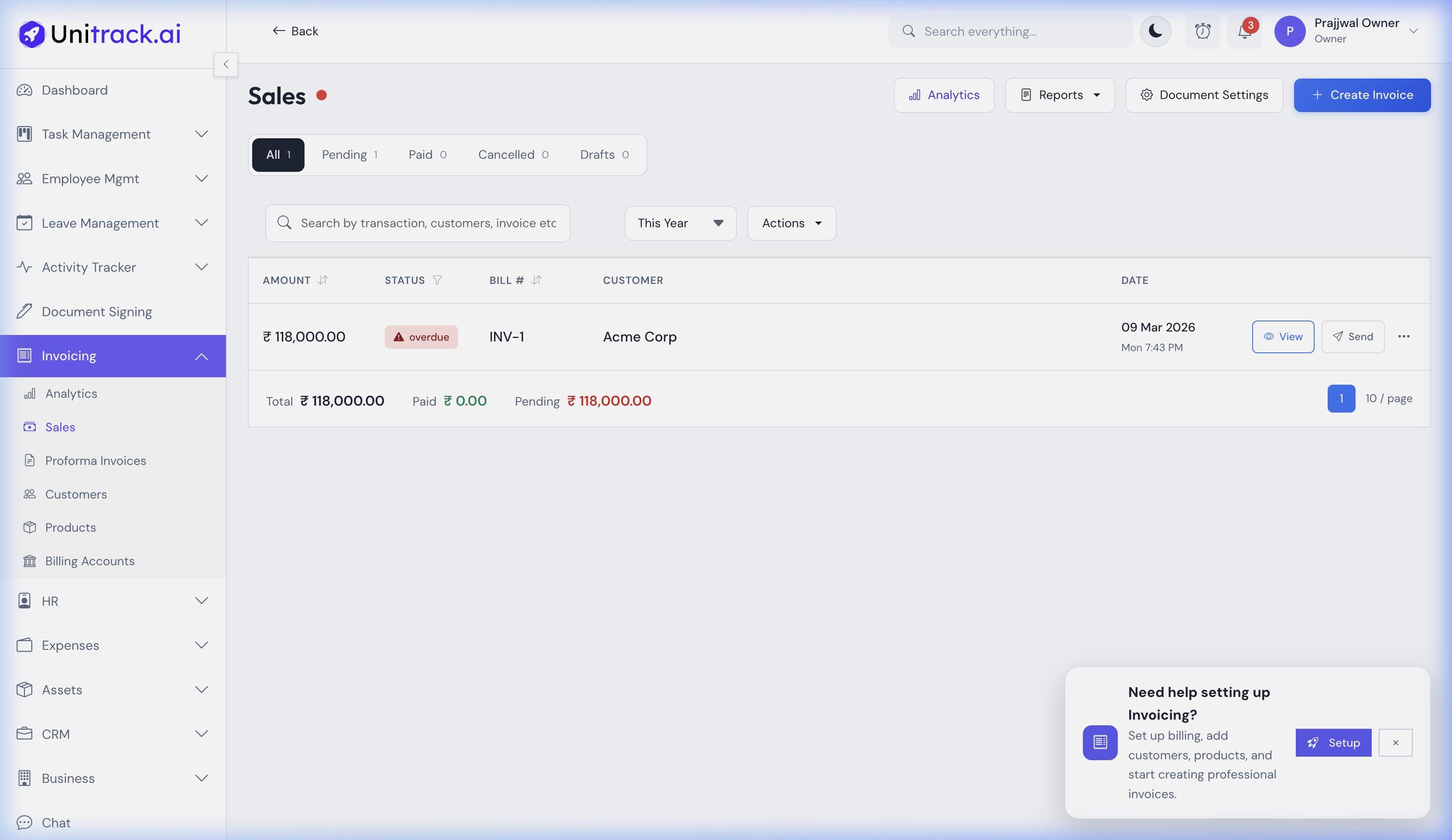
A clear overview of all your generated invoices and their statuses.
- 1Invoice Tracking
Navigate to Invoicing → Sales to view all invoices. The dashboard provides quick filters to see All, Pending, Paid, Cancelled, and Draft invoices.
- 2Status Management
The list view clearly indicates the status of each invoice, highlighting overdue items so you know exactly who to follow up with. Quick action buttons let you view or send the invoice right from the list.
2. Customer & Product Database Setup
Before you create your first invoice, you need a centralized client list and service catalog. This ensures quick auto-fill later.
Adding a Client
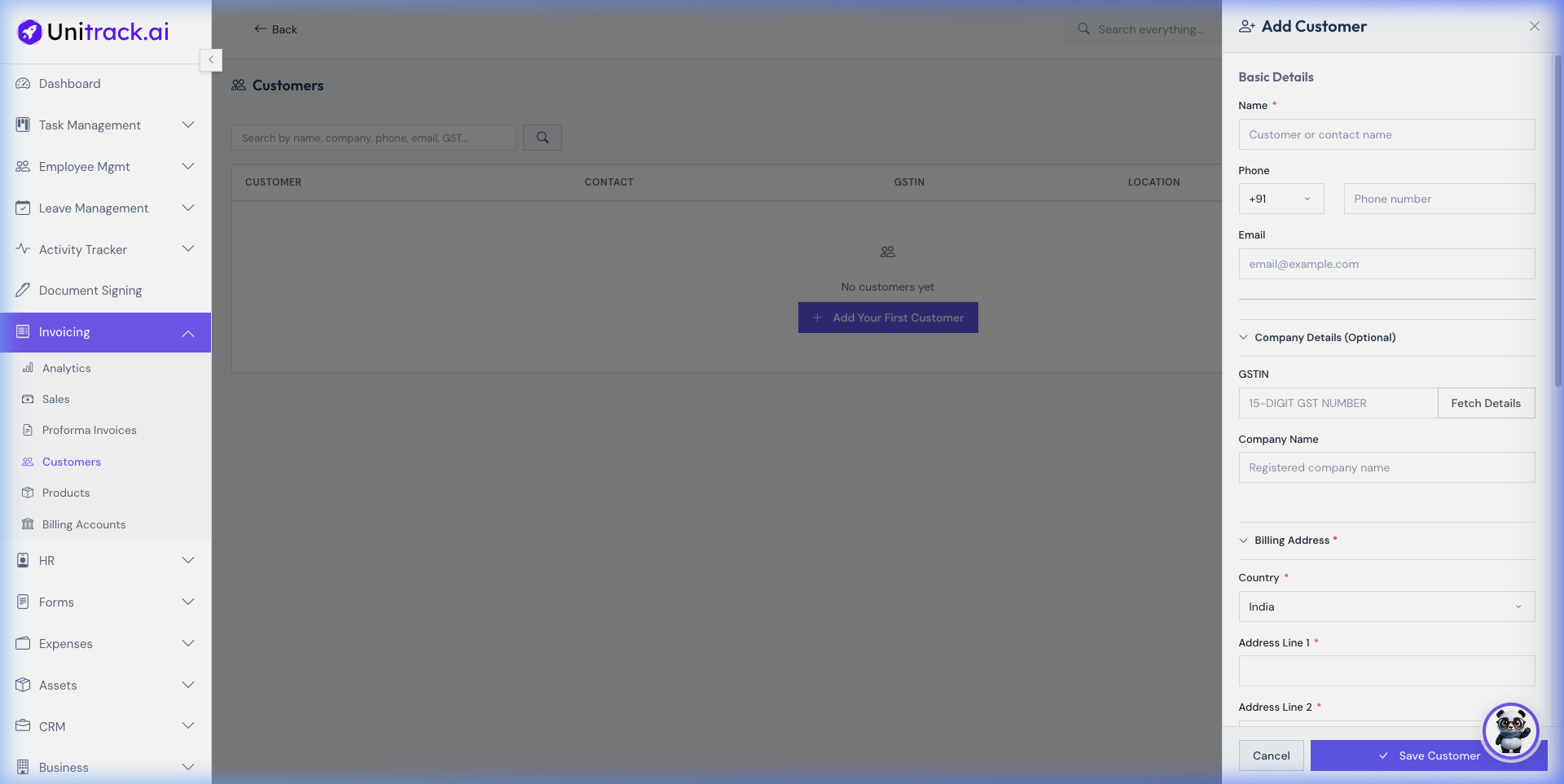
- Company Profile: Fill out the client's official registered business name and their point-of-contact's email (where invoices will be sent).
- Billing Address & GSTIN: Enter their specific State/Province to allow the system to determine if it's an intra-state or inter-state transaction (CGST/SGST vs IGST). Ensure you add their GSTIN if they expect tax credits.
Creating a Product/Service
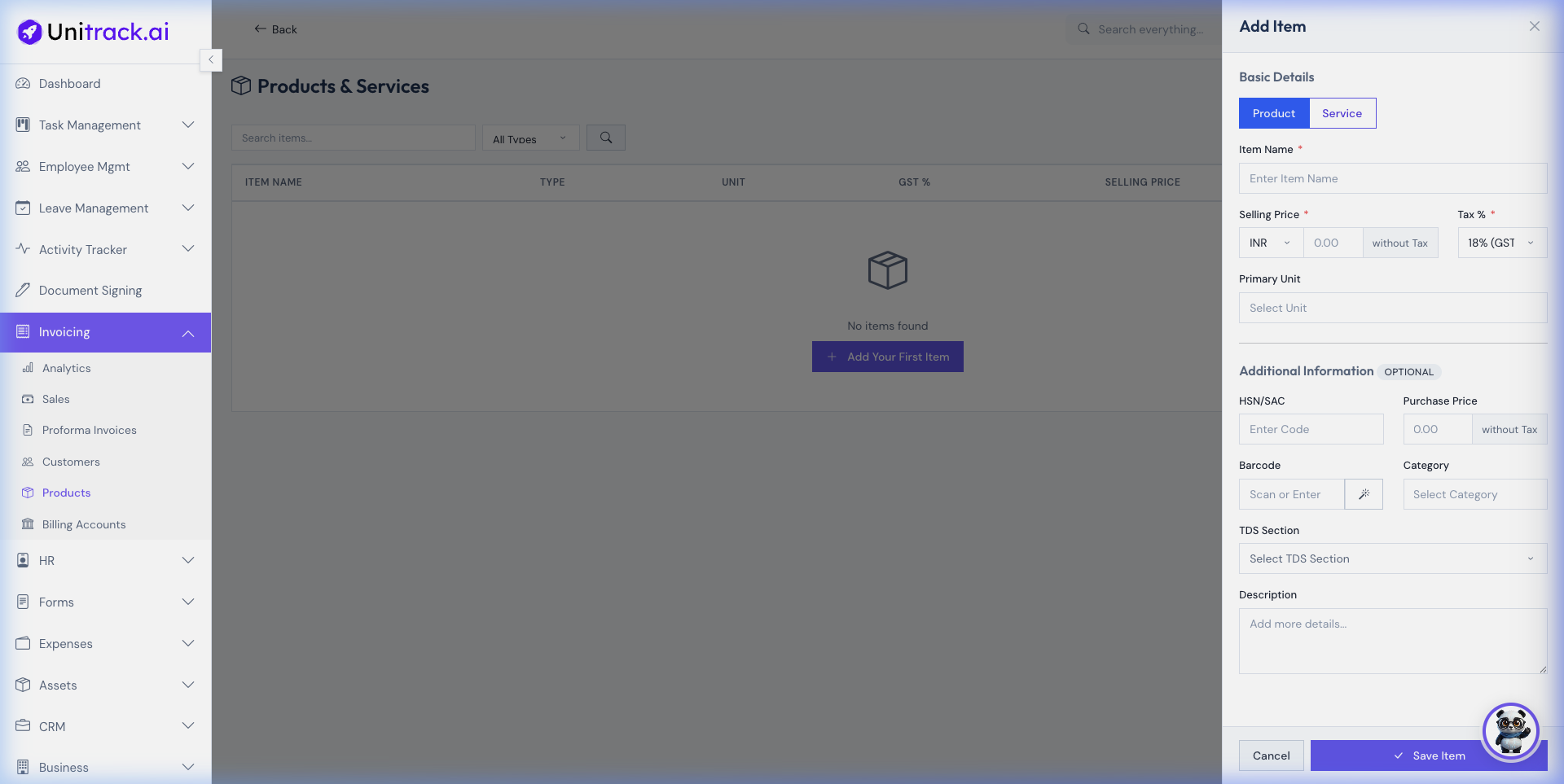
- HSN/SAC Codes: Input the universally recognized 4/6/8-digit tax classification code for your physical product (HSN) or digital service (SAC). We embed this directly on the invoice.
- Pricing Configuration: Set the default unit price to save time, and select the appropriate GST tax slab (e.g. 5%, 12%, 18%, or 28%). Decide whether this price already includes tax, or if tax should be added on top.
3. Creating a GST-Compliant Invoice
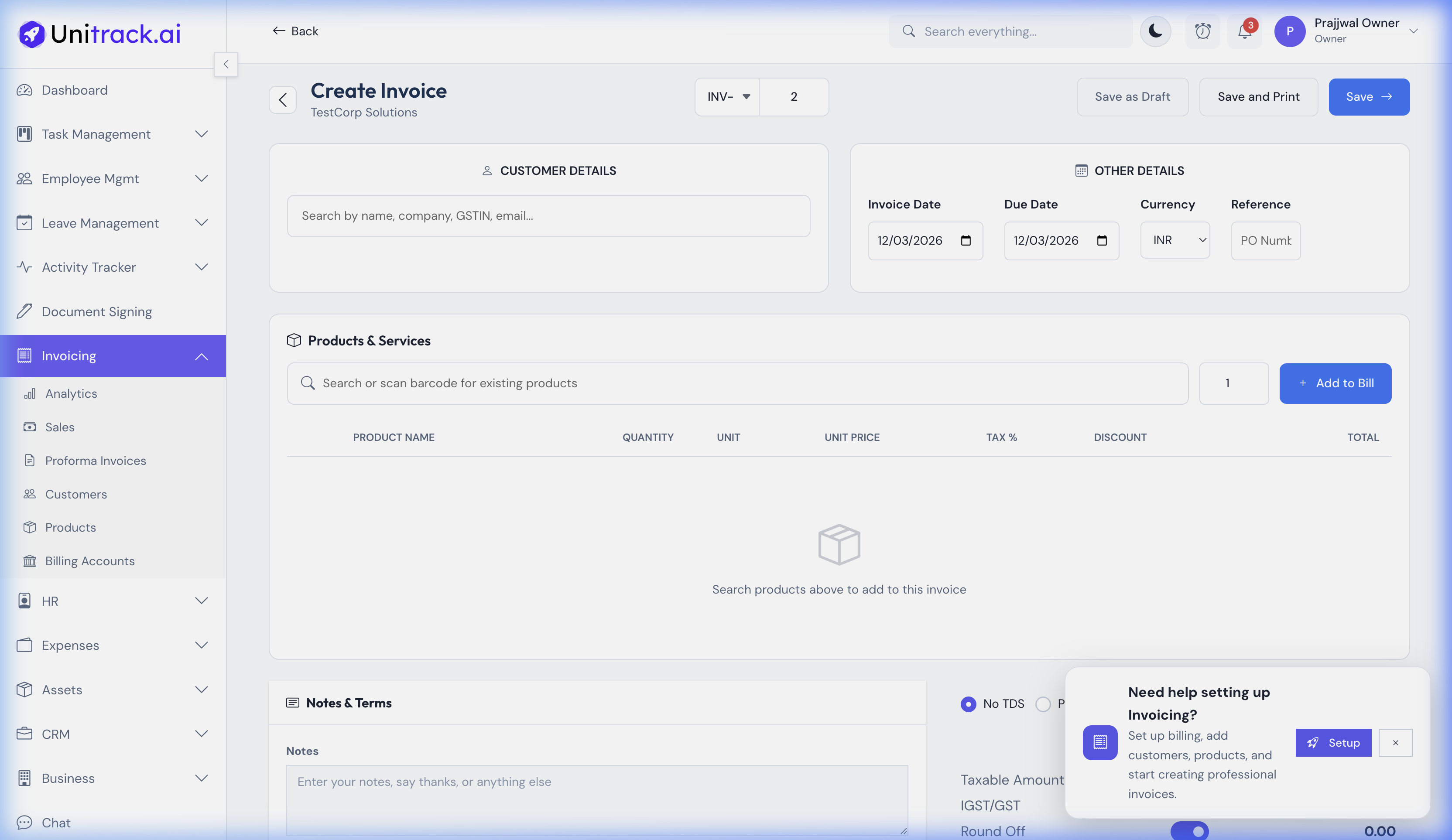
Generate precise, client-ready invoices with automated CGST/SGST/IGST and TDS deduction logic.
- 1Select Client & Terms
From the Sales dashboard, click + Create Invoice. Select the Customer you created in Step 2. Set an invoice Issue Date and a Due Date (which will trigger overdue notices if unpaid).
- 2Billing Entities
An enterprise might operate across different states. Select which of your Billing Accounts (your registered branches) will act as the seller on this specific invoice.
- 3Line Items & HSN
Add items from your Product catalog. The system will auto-populate the description, HSN/SAC code, price, and tax slab but you can edit any line item directly here (e.g. adding a custom discount).
- 4GST Split & TDS Configuration (Advanced)
The system automatically switches between IGST and CGST/SGST based on the State mapping between your Billing Entity and the selected Customer. You can also define an explicit TDS (Tax Deducted at Source) section rate applicable to this invoice—the system mathematically deducts it without affecting gross total values shown to the client.
- 5Finalize & Dispatch
Preview the PDF draft. When you're ready, hit "Save & Send" to email an encrypted, professional document directly to the client with your bank details listed in the notes.
4. Payment Tracking & Ledgers
Say goodbye to manually syncing bank statements with unpaid files.
- Add Payment Records
When a Wire Transfer/UPI hits your bank, navigate to the specific invoice and click Add Payment. Enter the exact sum received and the transaction reference number (UTR / IMPS number).
- Partial Payments & Status Updates
UniTrack natively supports partial payments! If you bill ₹10,000 and the client pays a ₹4,000 retainer, add the payment. The invoice status will auto-change to "Partially Paid" and precisely recalculate the Remaining Balance visible on the dashboard.